Start with the exact login failure you see
Before changing anything, pause and name the failure precisely. “Wrong password” is different from “Something went wrong,” a spinning loop after you press Continue, or being bounced back to the login screen. Write down the exact wording, whether it happens after entering email, after password, or only after a code/approval step. Note the device (phone vs laptop), the app vs browser, and the time it started (including time zone).
Do one careful retry, then stop. Rapid repeated attempts can trigger security checks or temporary blocks. If you can, take a screenshot and record any error code. This small bundle of details will keep the next steps focused and makes support far more effective if you need it.
Rule out a ChatGPT outage or maintenance
You’re trying to fix a “you” problem, but sometimes it’s simply a “service” problem. If the error is vague (“Something went wrong,” “Unable to load,” a blank page, or a login loop that suddenly started), first check whether ChatGPT is having a wider incident. The quickest confirmation is to open OpenAI’s official status page from a separate tab or device. If you can’t load that either, search “OpenAI status” from your phone on cellular data to avoid being misled by your current network.
Look for reports affecting “ChatGPT,” “login,” “SSO,” or “API,” and note the timestamp and whether the issue is “investigating,” “identified,” or “monitoring.” During an incident, repeated password resets and retries often waste time and can increase verification friction. If the status page shows a problem, pause for 20–30 minutes, then try once again, ideally from a different device.
Make sure you’re using the same sign-in method
A very common “invalid credentials” situation is simply using a different sign-in method than the one you originally chose. ChatGPT accounts can be created with email-and-password or with an identity provider like Google, Apple, or Microsoft. If you first signed up with “Continue with Google,” then trying to log in later by typing the same Gmail address into the email/password form can look like a wrong password (or even like the account doesn’t exist). The reverse happens too: you may have set a password originally, but now you’re clicking a social sign-in button out of habit.
Pick one device and test deliberately: try the exact button you used when you first created the account, and only then try alternatives. Watch for small differences in email (work vs personal, .edu vs .com, aliases, Apple “Hide My Email”). If your workplace uses SSO, you may need the “Continue with Microsoft/Google” path tied to that organization. Mixing methods can accidentally create a second, separate account, which is confusing if you’re looking for an existing subscription or chat history.
When verification emails and 2FA block you

You request a verification email or a 2FA code, and nothing arrives—or it arrives too late, or every code is “invalid.” Start by checking the obvious friction points: spam/junk, “Promotions,” and any quarantine filter if you’re on a work or school inbox. Then search your mailbox for the sender and subject, because some providers file these away without showing a notification. If you use Apple “Hide My Email” or an alias, confirm you’re checking the real destination inbox. Avoid hammering “resend” every few seconds; many systems rate-limit and the newest link can invalidate the previous one.
For authenticator apps, verify your phone’s date and time are set to automatic; clock drift is a common reason codes fail. If you recently changed phones, restored from backup, or reinstalled the authenticator, the codes may no longer match this account. At that point, stop attempts, try signing in from a previously trusted device if you have one, and prepare to use account recovery or support rather than guessing and triggering a lock.
Browser cookies, extensions, and session loops
You press Continue, the page flashes, and you land back on the login screen with no clear error. That loop often comes from browser state: cookies blocked, stale session tokens, or cached redirects that don’t match your current sign-in path. Start with a low-risk test: open a private/incognito window and try logging in once using the correct method (Google, Apple, Microsoft, or email/password). If that works, the issue is almost certainly local to your normal browser profile.
Then clear site data for the ChatGPT and OpenAI domains (cookies plus cached files), close the browser completely, and try again. If you run ad blockers, privacy extensions, script blockers, “cookie consent” tools, or antivirus web shields, temporarily disable them for this site; they can block the identity-provider handoff or strip required cookies. Also check browser settings that prevent cross-site tracking or third-party cookies, since many login flows rely on them. The practical downside is time: clearing cookies signs you out of other sites and can remove saved preferences, so do it selectively (site-specific) when possible.
Network and device constraints you might overlook
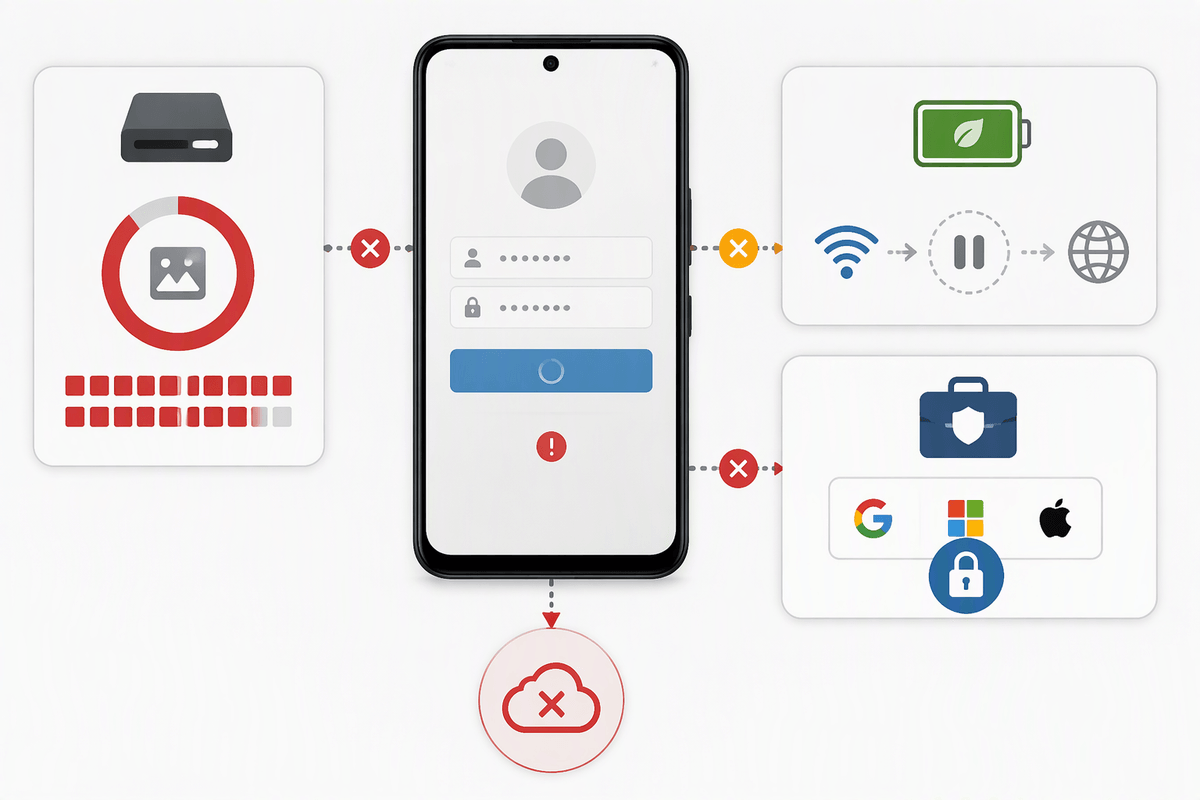
Everything can be “correct” and still fail if your network is interfering. A corporate proxy, school filter, or “secure DNS” app can block the sign-in handoff or the invisible calls that finish a session, leaving you stuck on a blank page or loop. Try one clean comparison: switch from Wi‑Fi to cellular data (or a different Wi‑Fi), and iCloud Private Relay (if enabled) for a single login attempt. If you’re on public Wi‑Fi, open any normal website first to trigger the captive portal; otherwise the login flow may never complete.
Device constraints show up as “something went wrong” with no clue why. Low storage can prevent the app from writing session data. Aggressive battery saver modes can pause background network calls right after you approve a prompt. Managed work devices may enforce policies that block third-party sign-in or embedded browsers. Testing another network or borrowing a personal device is often faster than repeated retries, but may be restricted by workplace rules.
If your account is locked: next steps and support
You may be locked out if you see messages like “too many attempts,” “suspicious activity,” repeated CAPTCHA challenges, or you can log in but are immediately signed out again across devices. Stop trying to “guess” your way in; waiting 30–60 minutes often clears temporary rate limits, while more attempts can extend them. Avoid repeated password resets unless you’re sure you’re using the right sign-in method, because resets can add extra verification steps.
If the lock persists into the next day (October 27, 2026), shift to escalation. Use OpenAI’s official help and account recovery options, and include: the exact error text, approximate time started (with time zone), sign-in method used, email (and any aliases), device/app version, browser name, network type (proxy on or off), and screenshots. The main cost is time, but precise details shorten the back-and-forth.